Migrate your agent from OpenClaw to Hermes
Hermes is Agento's second agent runtime. Migrating switches an existing OpenClaw agent over to Hermes from the dashboard, through a guided preview and confirmation flow. It is still your agent: same name, same persona, same connections. This guide walks through the self-serve migration and what to expect.
What carries over
When you migrate, the new Hermes agent keeps:
- Full conversation history. Every past session is converted and visible in the new runtime.
- Memory and user profile. What your agent has learned about you and its work comes along.
- Connected channels. Telegram, Slack, and web chat reconnect automatically from your saved settings.
- Identity and persona. Your agent's SOUL.md (name, role, instructions) is preserved.
- Your own provider and credentials. The agent keeps running on the AI provider and API keys you already connected. There is no platform AI cost added by migrating.
One thing to know about models: MiniMax is text-only and does not support vision. If your agent runs MiniMax (or any other non-vision model) and you need image understanding on Hermes, switch the agent to a vision-capable provider and model on your account, such as OpenAI or Anthropic. Text chat is unaffected either way.
Before you start
- The "Switch to Hermes" option appears only for agents currently on the OpenClaw runtime. Agents already on Hermes show "Already on Hermes".
- You need to be the agent's owner (a member of its account).
- A quick check that your channels are connected the way you want them, since they carry over as-is.
How to migrate
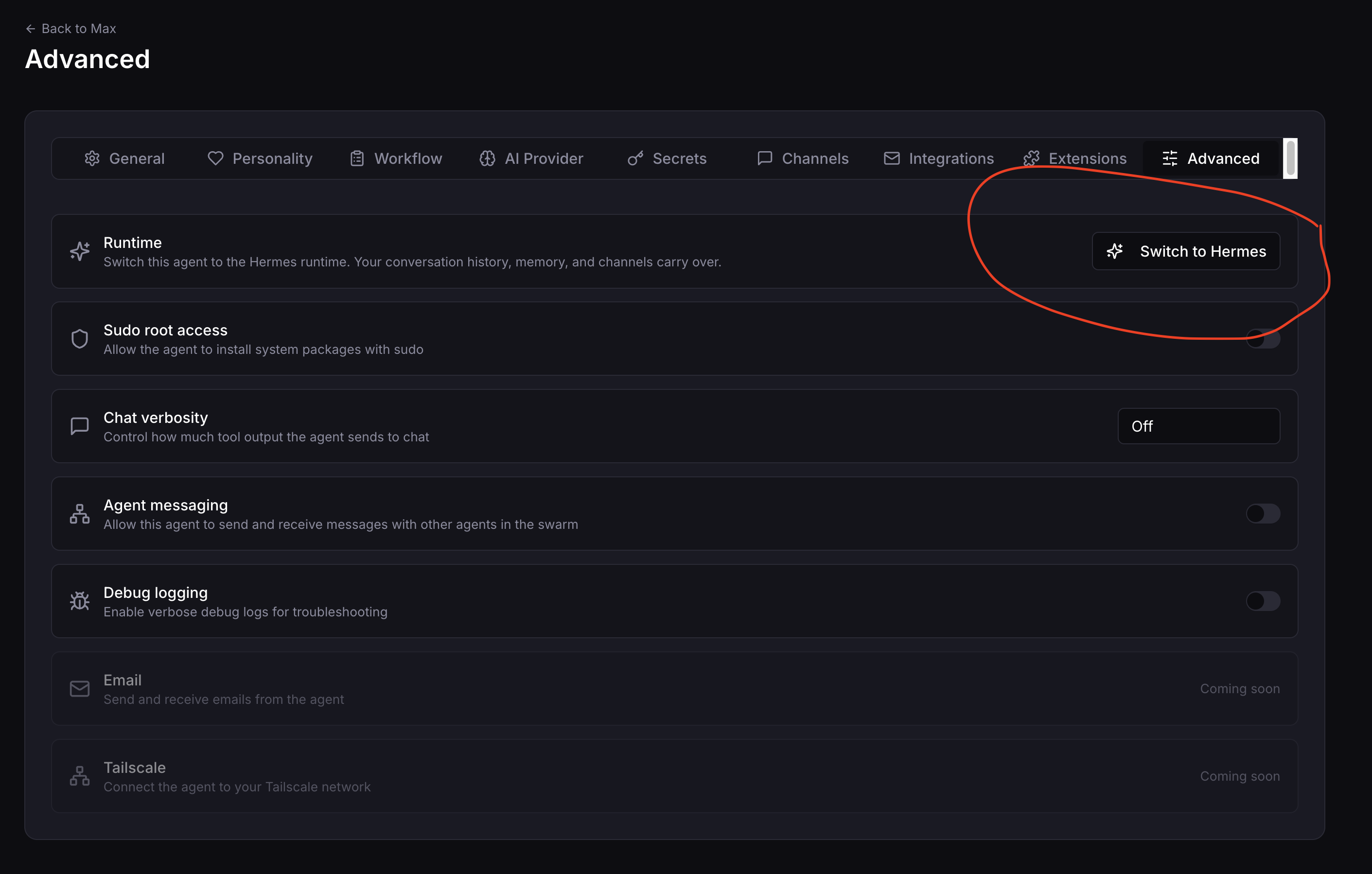
1. Open the migration card. Go to the dashboard, click your agent, then Manage → Advanced. Find the Switch to Hermes card and click Switch to Hermes.
2. Review the preview. A preview loads showing what will migrate: how many sessions of history carry over, that memory and channels are preserved, and any Telegram or Slack owner DM that can be set as the Hermes home channel. Nothing has changed yet at this point.
3. Confirm. Migration is one-way, so the dialog asks you to type your agent's exact name to enable the Migrate to Hermes button. Read the note about brief downtime, then type the name and click Migrate to Hermes.
4. Wait for cutover. The migration converts your data, switches the runtime, and starts the agent on Hermes. The dialog shows each step and a completion message when done.
5. Verify. Send a message in web chat and confirm your agent responds. Check that your connected channels (Telegram, Slack) still work, and open a session to confirm your history and memory are present.
Important caveats
- It is one-way. Migrating is snapshot-backed, so it can be reversed, but only by contacting support. Treat it as permanent.
- Brief downtime. Your agent restarts during cutover, so it is briefly offline. Existing messages are not lost.
- Re-pair device channels. Channels that use QR or device pairing (for example WhatsApp) may need to be re-paired after migrating. Telegram, Slack, and web chat reconnect automatically.
After migrating
- Same agent. Name, persona, history, memory, channels, provider, and credentials are unchanged.
- Home channel. Hermes delivers scheduled (cron) results and proactive messages to a "home channel". When migration can resolve a Telegram or Slack owner direct message, it sets the home channel automatically (for example your Telegram DM), so cron jobs keep delivering without any setup. If no owner DM can be resolved, the home channel is left unset and you can set one anytime by sending
/sethomein the chat you want. - Where to check it worked. The Advanced card now reads "Already on Hermes". Your sessions list shows the migrated history, and your usage metrics stay continuous (no one-time spike) on migration day.
If anything looks off after migrating, reach out to support: a migration is snapshot-backed and can be rolled back.